
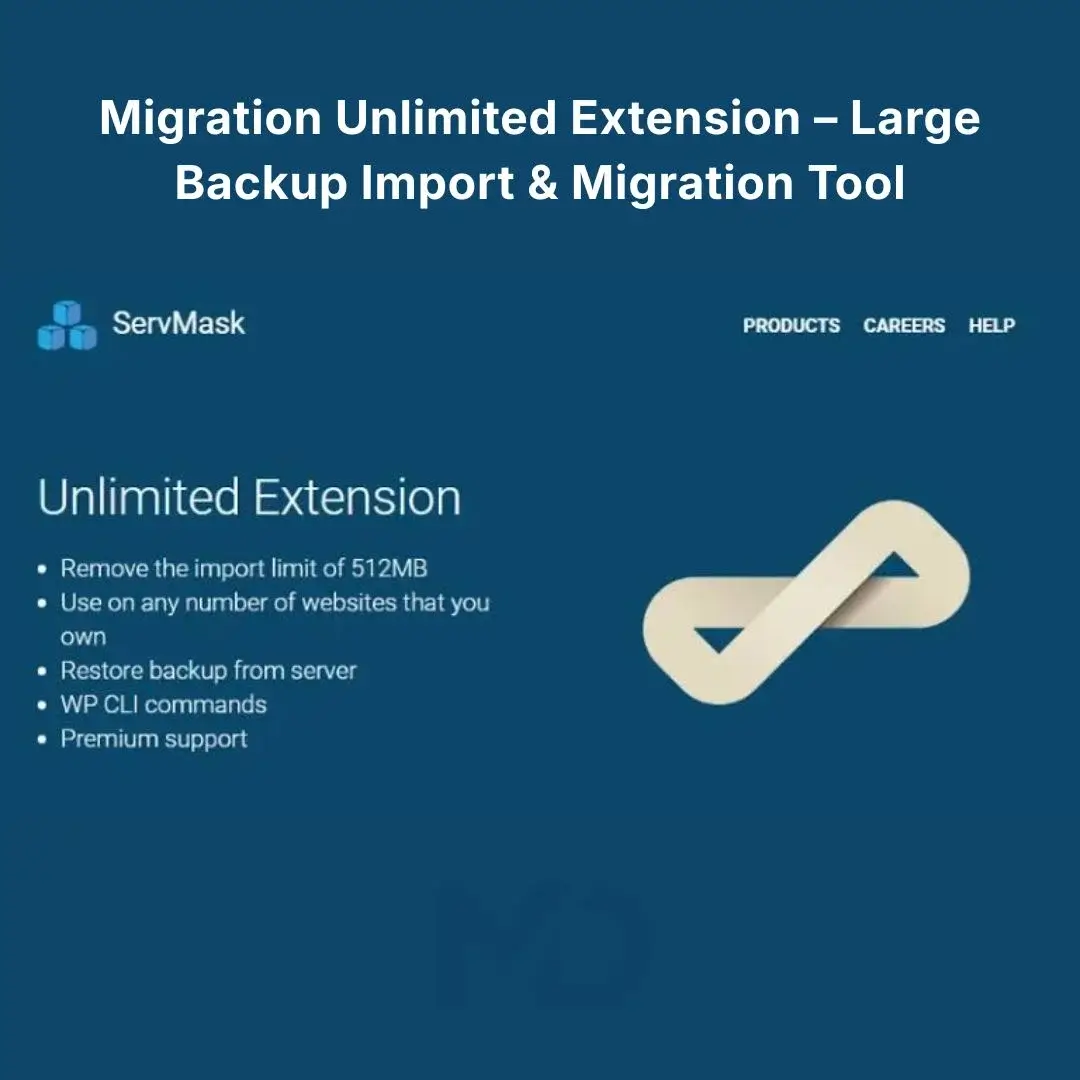



WordPress Migration Unlimited Extension – Large Backup Import & Migration Tool
Move, restore, and migrate WordPress websites without getting blocked by restrictive hosting upload limits.
If you have ever tried to import a large WordPress backup only to encounter messages such as “file exceeds the maximum upload size,” “upload_max_filesize,” “post_max_size,” memory limit, or execution timeout, you know how frustrating website migration can become.
The WordPress Migration Unlimited Extension – Large Backup Import & Migration Tool is designed to address these hosting-related limitations and make large WordPress migrations significantly easier. It extends the functionality of the compatible WordPress migration plugin by overriding important PHP upload restrictions and providing tools for importing large backups directly from the server.
Whether you’re moving a website to faster hosting, restoring a large backup, creating a staging copy, or transferring a complete WordPress installation, this extension provides a practical solution when normal browser-based uploads are getting in the way.
Stop Letting Hosting Upload Limits Block Your Migration
A common WordPress migration problem isn’t actually the backup file itself.
Your hosting server may impose limits through PHP settings such as:
upload_max_filesizepost_max_sizemax_file_uploads- PHP execution time
- PHP memory limits
These restrictions can prevent large backup files from being uploaded or processed successfully. ServMask explains that these limits originate from the hosting/server configuration rather than from the migration plugin itself.
This extension is designed to work around those restrictions, making it particularly useful when your hosting provider doesn’t allow you to increase the relevant PHP settings yourself.
Key Features
Large Backup Import Without Typical Upload Restrictions
One of the biggest reasons to use this extension is to overcome common PHP upload restrictions.
The extension can override:
max_file_uploadspost_max_sizeupload_max_filesize
This is especially useful when you’re attempting to migrate a large website and your hosting environment has restrictive upload settings.
Practical benefit: Spend less time modifying server configuration and more time completing your migration.
Bypass Execution-Time & Memory Limitations
Large WordPress migrations can require significant server resources.
A migration may fail because the server terminates a process before it has finished importing or restoring the website.
The extension is designed to bypass execution-time and memory limitations associated with the migration process.
This can be particularly helpful for websites containing:
- Large media libraries
- Many plugins
- Large databases
- WooCommerce data
- Numerous images and documents
- Complex theme configurations
Restore Large Backups Directly From the Server
Instead of depending entirely on a browser upload, the extension provides server restore functionality, allowing backups to be imported directly from the server.
This can be an excellent workflow when your backup file is already stored on your hosting account.
Ideal for: large .wpress backup files and migration workflows where uploading through the WordPress browser interface is impractical.
Simplify WordPress Website Migration
Moving a WordPress website manually can involve multiple complicated steps:
- Exporting the database
- Downloading WordPress files
- Uploading files
- Importing the database
- Updating URLs
- Reconfiguring plugins
- Checking media
- Fixing permissions
- Testing the website
Using a compatible migration workflow can significantly reduce the amount of manual work involved.
The extension is designed specifically to make the large-file portion of this process easier.
WP-CLI Support
For advanced WordPress users, developers, and system administrators, the extension includes WP-CLI support for automation and command-line workflows.
This can be particularly valuable when managing multiple WordPress installations or incorporating migration operations into development workflows.
Useful for:
- Developers
- WordPress agencies
- System administrators
- Staging environments
- Automated workflows
- Advanced WordPress users
Reset Hub
The current product listing also includes Reset Hub tools intended to assist with efficient website management.
This provides additional utility beyond simply increasing the upload capacity for migration files.
What Problems Does This Extension Solve?
Problem 1: “My backup is too large to upload.”
Solution: The extension is designed to override common PHP upload restrictions such as upload_max_filesize and post_max_size.
Problem 2: “My migration keeps timing out.”
Solution: It provides mechanisms designed to bypass execution-time and memory limitations during migration operations.
Problem 3: “I already have the backup on my server.”
Solution: Use the server restore workflow to import the backup directly from the server rather than relying on a conventional browser upload.
Problem 4: “I need to migrate a large WordPress website.”
Solution: Combine the base migration plugin with this extension to handle large backup imports more effectively.
Problem 5: “I want to automate migration tasks.”
Solution: Advanced users can take advantage of the available WP-CLI functionality.
Who Should Use This Extension?
This product can be particularly useful for:
WordPress Website Owners
Move your website to a new hosting provider without being restricted by a small PHP upload limit.
WordPress Developers
Speed up website migration and staging workflows when working with larger installations.
Freelancers & Agencies
Useful when transferring client websites between development, staging, and production environments.
WooCommerce Store Owners
Large online stores can contain substantial databases and media libraries, making reliable migration workflows especially important.
Website Administrators
A practical tool when server-level PHP restrictions interfere with backup restoration.
Hosting Migration Projects
If you’re moving from an old hosting account to a new server, this extension can help overcome upload-related obstacles during the process.
Installation Guide
Important: This extension is designed to work with the compatible base migration plugin. Install and activate the required base plugin before attempting to use the extension.
Step 1: Back Up Your Website
Before installing migration software or performing a restoration, create a complete backup of your existing website.
Your backup should include:
- WordPress database
- Themes
- Plugins
- Media/uploads
- Configuration files
- Other required website data
A migration should never be treated as a substitute for maintaining independent backups.
Step 2: Install the Base Migration Plugin
From your WordPress dashboard, go to:
Plugins → Add New
Install the compatible WordPress migration plugin and activate it.
Step 3: Upload the Extension
Go to:
WordPress Dashboard → Plugins → Add New → Upload Plugin
Select the extension ZIP file you received.
Click:
Install Now → Activate Plugin
If the package contains installation instructions or a required companion plugin, follow those instructions before proceeding.
Step 4: Confirm Activation
After activation, open the migration plugin’s dashboard and check whether the extension’s additional functionality is available.
You should see the relevant import/restore functionality provided by the extension.
How to Use It for a Large WordPress Migration
Step 1: Prepare Your Backup
Create or obtain a complete WordPress migration backup.
Keep a separate copy of the backup file before starting the migration.
Step 2: Prepare the Destination Website
Install WordPress on your new hosting account.
Log in to the new WordPress dashboard.
Install the compatible base migration plugin and this extension.
Step 3: Open the Import Area
Navigate to the migration plugin’s import functionality.
Select the appropriate import method.
For large files, use the available server-based restore/import workflow when appropriate.
Step 4: Import the Backup
Select your backup and start the migration.
The extension is designed to overcome the relevant PHP upload and processing limitations that would otherwise interfere with large imports.
Do not close the browser or interrupt the process unless the migration interface specifically tells you that it is safe to do so.
Step 5: Allow the Migration to Complete
Large websites may take time to process.
Avoid:
- Refreshing the page unnecessarily
- Closing the browser
- Restarting the server
- Deleting migration files
- Making unrelated WordPress changes during the import
Wait until the migration process confirms completion.
Step 6: Log In After Migration
After a complete WordPress migration, the destination website may contain the users and settings from the original website.
Use the appropriate administrator credentials from the migrated website.
ServMask’s migration guidance also recommends saving the permalink settings after migration to refresh rewrite rules.
Go to:
Settings → Permalinks → Save Changes
You generally don’t need to change the permalink structure; simply saving the settings can refresh the rewrite rules.
Important: “Unlimited” Does Not Mean Unlimited Websites
This is an important point for buyers.
The word “Unlimited” refers to the extension’s ability to overcome relevant upload/migration restrictions, not unlimited website licensing.
According to the current official ServMask listing, the standard license is for up to 50 sites, while local development sites are excluded from the site’s quota.
ServMask also states that once a site uses the plugin—for example, for a migration or backup—that site counts toward the subscription-year quota even if the plugin is later removed.
Therefore, MD Digitals should not advertise this product as “unlimited websites.”
Important Hosting Considerations
This extension is designed to bypass specific PHP restrictions, but it does not mean that every possible server restriction disappears.
For example, ServMask explains that effective upload limits can also be influenced by web-server configuration such as Nginx’s client_max_body_size or other infrastructure-level restrictions.
If an import continues to fail:
- Check the WordPress Site Health server information.
- Check PHP upload settings.
- Check your hosting provider’s server limits.
- Check for Nginx/Apache restrictions.
- Check security or firewall systems.
- Make sure the backup is not corrupted.
- Confirm that the base migration plugin and extension versions are compatible.
Best Practices for a Successful Migration
Always Keep the Original Backup
Don’t delete your original backup immediately after a successful migration.
Keep it safely stored until you have thoroughly tested the new website.
Test Before Changing DNS
If you’re moving to a new host, test the migrated website before pointing your domain’s DNS to the new server whenever possible.
Check Your Important Pages
After migration, test:
- Homepage
- Login
- Contact forms
- Blog
- Images
- Menus
- Search
- WooCommerce
- Checkout
- Payment gateway
- User accounts
- Email functionality
Clear Your Cache
If your website uses caching or optimization plugins, clear the cache after migration.
Also clear any server-side or CDN cache where applicable.
Check SSL
Make sure HTTPS is working correctly on the destination server.
Frequently Asked Questions
Does this extension increase WordPress’s upload limit?
It is designed to override important PHP upload restrictions including upload_max_filesize, post_max_size, and max_file_uploads.
Can I import a very large WordPress backup?
The extension is specifically designed for large backup imports and provides server restore functionality for backups of any size, subject to the capabilities and restrictions of the underlying server environment.
Does it include the main migration plugin?
This product is an extension/add-on, not a replacement for the compatible base migration plugin. Install the required base plugin separately.
Can I use it for WooCommerce?
Yes, it can be used as part of a WordPress migration workflow for WooCommerce websites. A complete migration can transfer the store’s WordPress data, plugins, theme, settings, and WooCommerce-related content when using the compatible migration workflow.
Does “Unlimited” mean unlimited websites?
No. The current official standard license is listed for up to 50 sites, with local development sites not counted.
Do I need technical knowledge?
Basic WordPress knowledge is sufficient for normal installation and migration. Advanced users can also take advantage of WP-CLI functionality.
Why Choose This Migration Extension?
If your biggest migration problem is a large backup file, restrictive hosting limits, failed imports, or migration timeouts, this extension is designed specifically around those problems.
Instead of repeatedly fighting:
“Maximum upload size exceeded”
or
“The import timed out”
you can use a migration workflow designed to handle the restrictions that commonly affect large WordPress backups.
Move bigger WordPress websites. Restore large backups. Reduce migration headaches. Get your website running on its new server faster.
Copyright & Trademark Disclaimer
Copyright & Trademark Disclaimer: All-in-One WP Migration® is a registered trademark of ServMask Inc. WordPress® is a registered trademark of the WordPress Foundation. All other product names, company names, logos, and trademarks referenced on this page remain the property of their respective owners.
This product is not affiliated with, endorsed by, sponsored by, or officially connected with ServMask Inc., All-in-One WP Migration®, WordPress.org, or the WordPress Foundation, unless expressly stated otherwise.





Reviews
There are no reviews yet