
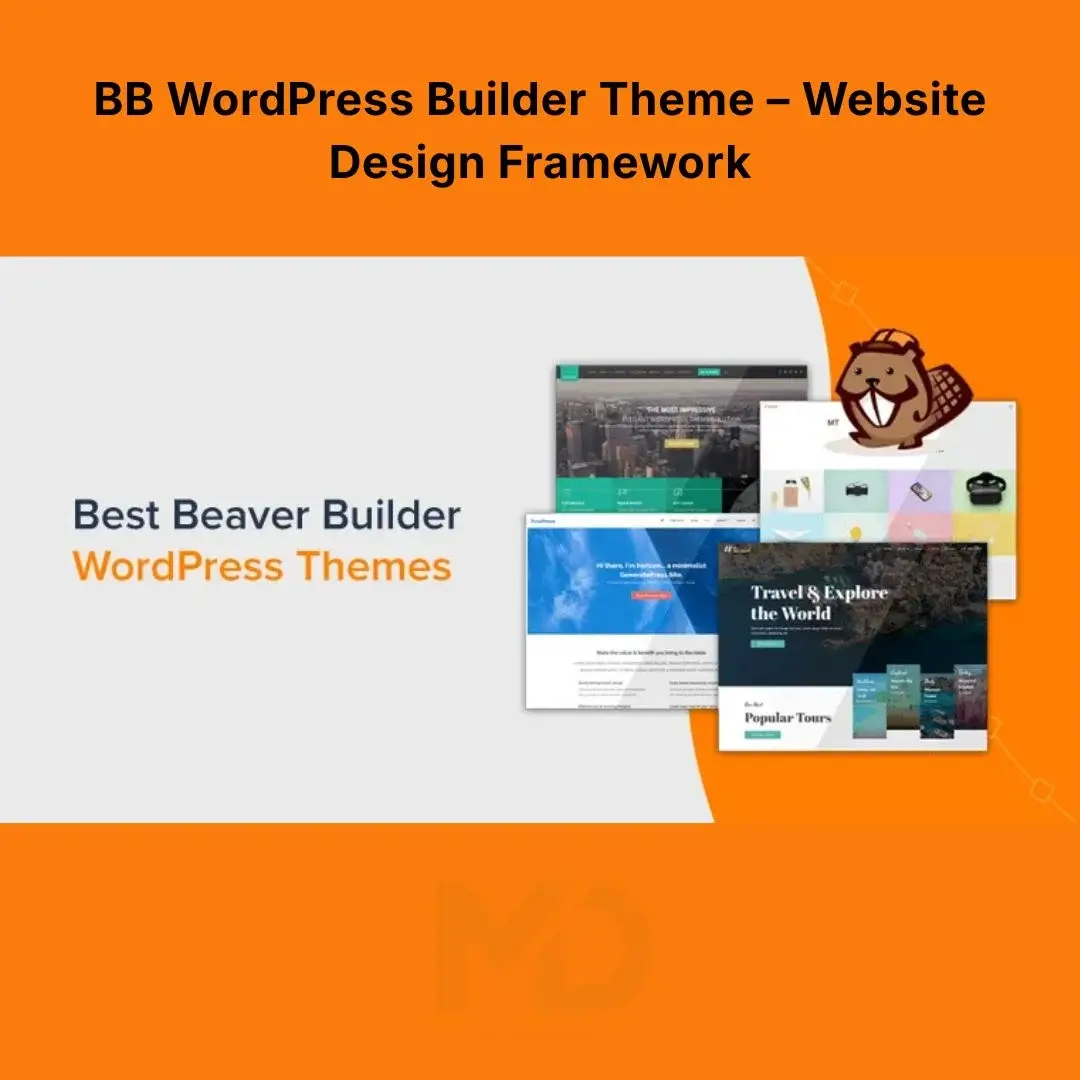
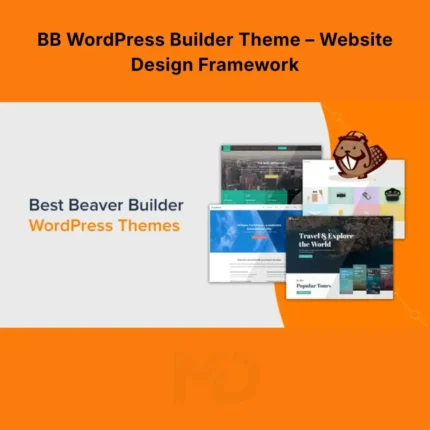
BB WordPress Builder Theme – Website Design Framework
Build a professional WordPress website with a flexible theme framework designed to give you greater control over your site’s layout, typography, colors, headers, footers, sidebars, blog pages, and responsive presentation.
BB WordPress Builder Theme – Website Design Framework is designed for users who want a clean foundation for building business websites, portfolios, blogs, agencies, service websites, and other WordPress projects. It works particularly well alongside the corresponding visual page-builder ecosystem, allowing you to control both your site’s overall theme structure and the content layouts you create.
The official documentation describes the underlying BB Theme as a framework theme with extensive options available through the WordPress Customizer, including header, footer, sidebar, blog, WooCommerce, typography, colors, and other global design settings.
Create a Website Without Fighting Your Theme
A page builder can help you design individual pages, but your theme controls the broader structure of your WordPress website.
That includes areas such as:
- Header
- Navigation
- Footer
- Sidebar
- Blog archives
- Individual posts
- WooCommerce layouts
- Typography
- Global colors
- Responsive behavior
The BB Theme is designed to provide those controls from within WordPress while working alongside the compatible page-builder ecosystem.
Instead of repeatedly adding custom code to make your theme behave the way you want, you can use the available Customizer and theme settings to establish a consistent website design.
Key Features
1. Flexible WordPress Website Framework
Use the theme as a foundation for creating different types of websites rather than being locked into a single visual style.
It can be adapted for:
- Business websites
- Agency websites
- Freelance portfolios
- Personal websites
- Blogs
- Service businesses
- Landing-page websites
- Online stores
- Professional portfolios
- Client websites
The theme provides global controls for major website areas while allowing your page-building tools to handle individual page layouts.
2. Designed for Visual Page Builder Workflows
The BB Theme is specifically designed to work with the corresponding Beaver Builder ecosystem.
The official documentation distinguishes the roles of the theme and page-builder plugin: the theme controls areas such as the header, footer, sidebar, and post presentation, while the builder handles the content area of pages and posts.
This separation gives you a practical workflow:
Theme → Overall Website Structure
Page Builder → Individual Page Content
That means you can establish your site’s global design once and then build individual pages using the visual editor.
3. WordPress Customizer Controls
Customize the appearance of your website through:
WordPress Dashboard → Appearance → Customize
The official documentation states that the theme’s customization options are managed through the WordPress Customizer.
Depending on the available version and configuration, customization areas include:
- Color scheme
- Typography
- Header
- Footer
- Navigation
- Menus
- Widgets
- Blog settings
- Sidebar settings
- WooCommerce-related layouts
- Custom code areas
This makes it possible to establish a consistent visual identity without editing theme files for every basic design adjustment.
4. Header & Navigation Design
Your header is one of the first things visitors see.
The theme provides options for controlling the structure and presentation of your site’s header and navigation areas.
You can use these settings to establish a consistent layout for:
- Logo
- Navigation menu
- Header content
- Top bar
- Primary navigation
- Responsive navigation
This is particularly useful for business websites where consistent branding and easy navigation are important.
5. Flexible Footer Layout
Create a footer that supports your website’s content and navigation needs.
Depending on the configuration, you can use footer areas for:
- Navigation links
- Contact information
- Business details
- Widgets
- Copyright information
- Social links
- Additional website content
A well-structured footer helps visitors find important information without having to return to the main navigation.
6. Responsive Website Design
Modern websites need to work across desktops, tablets, and smartphones.
The BB ecosystem provides responsive controls that allow layouts to adapt to different screen sizes. The official documentation describes responsive editing, device-specific visibility, responsive settings, and customizable breakpoints.
You can work with different device sizes and adjust settings such as:
- Spacing
- Typography
- Column widths
- Backgrounds
- Visibility
- Layout behavior
This allows you to refine the website rather than simply relying on a desktop layout being automatically squeezed onto a phone screen.
7. Custom Breakpoints
Different websites have different responsive requirements.
The responsive system provides customizable breakpoint values so you can adjust when your layout changes between device sizes.
This is useful when:
- Your navigation becomes crowded at a particular width.
- A heading wraps incorrectly on tablets.
- Columns need to stack earlier.
- Your design needs a custom tablet breakpoint.
- You want greater control over mobile presentation.
Practical tip: Don’t choose breakpoints simply because they are popular. Test your actual website and adjust them according to where your design begins to break.
8. Device-Specific Visibility
Some content works well on desktop but creates unnecessary clutter on mobile.
Responsive visibility controls allow rows, columns, and modules to be shown or hidden for selected device sizes.
For example, you might:
Desktop: Display a large promotional section.
Tablet: Use a simplified version.
Mobile: Hide the desktop-specific element and display a compact alternative.
This can help you create cleaner mobile experiences without rebuilding the entire website.
9. Typography & Global Styling
Establish consistent typography throughout your website.
Global settings can be used to define things such as:
- Heading fonts
- Body fonts
- Font sizes
- Text styling
- Button appearance
- Accent colors
The official BB Theme documentation specifically lists default fonts for headings and text among its Customizer options.
Recommended approach: Choose your typography and brand colors globally first, then make individual pages only where necessary.
10. Global Design Consistency
One of the biggest advantages of using a structured theme framework is consistency.
Instead of manually styling every page, establish your:
- Brand colors
- Typography
- Header
- Footer
- Navigation
- Spacing
- Responsive behavior
Then build your individual pages on top of that foundation.
This is especially valuable for agencies and freelancers creating multiple websites because it reduces repetitive design work.
11. Blog & Content Layout Options
The theme also provides controls for blog archives and individual posts.
This makes it suitable for content-heavy websites such as:
- Blogs
- News websites
- Business publications
- Tutorials
- Magazine-style websites
- Company knowledge bases
You can establish a consistent visual presentation for your content while using the page builder where appropriate.
12. WooCommerce Support
If you’re building an online store, the theme includes options related to WooCommerce layouts and styling within its broader theme settings.
This makes it possible to use the same overall design language across:
- Shop pages
- Product pages
- Product archives
- Navigation
- Headers
- Footers
- Other website areas
Always verify the WooCommerce functionality available in your particular version before building a production store.
13. Child Theme Support
For developers and advanced users, using a child theme is strongly recommended by the official documentation.
A child theme allows you to customize the website while keeping your modifications separate from the parent theme.
The official installation documentation specifically recommends installing the child theme and notes that the child theme does not need to be updated when the parent theme is updated.
Why this matters
If you modify the parent theme directly, an update can potentially overwrite those changes.
With a child theme, you have a safer structure for maintaining customizations.
Recommended workflow:
Parent Theme → Child Theme → Customizations
14. Custom Code Options
For advanced users, the theme provides areas for adding custom code through its customization settings. The official documentation lists custom global code for the site among its Customizer options.
This can be useful for experienced developers who need to add controlled:
- CSS
- JavaScript
- Header code
- Body code
- Tracking snippets
Important: Only add code that you understand and always maintain a backup before making significant changes.
Who Is This Theme For?
Business Owners
Create a professional company website with consistent branding and responsive layouts.
Freelancers
Build portfolio and service websites without starting from a completely blank theme.
Agencies
Use a flexible framework for creating websites for different clients and industries.
Bloggers
Control typography, content presentation, navigation, and blog layouts.
Developers
Use the theme and child-theme structure as a foundation for deeper customization.
WooCommerce Store Owners
Build an online store while maintaining consistent branding across the broader WordPress website.
Problems This Product Helps Solve
Problem: Your theme gives you very little design control
Solution: Use the available Customizer options to control major website areas such as the header, footer, typography, colors, menus, widgets, and layouts.
Problem: Your desktop website looks good but mobile doesn’t
Solution: Use responsive controls, device-specific settings, and breakpoints to refine the layout for smaller screens.
Problem: You need a theme that works alongside a visual builder
Solution: The BB Theme is designed as a framework that complements the compatible Beaver Builder page-builder workflow.
Problem: Theme updates could overwrite customizations
Solution: Use the recommended child-theme approach for custom code and theme modifications.
Problem: Every page looks slightly different
Solution: Establish global typography, colors, header, footer, and spacing rules before designing individual pages.
Installation Guide
Before You Start
Create a complete WordPress backup before installing or changing your active theme.
If you’re using the compatible page-builder plugin, install and activate it separately according to its requirements.
The official documentation states that the BB Theme is not required for the page-builder plugin itself, although it is designed to function as a framework theme alongside it.
Step 1 — Log in to WordPress
Open your WordPress administrator dashboard.
Go to:
Appearance → Themes
Step 2 — Upload the Theme
Click:
Add New → Upload Theme
Select the supplied theme ZIP file.
Click:
Install Now
The official installation procedure uses the same Appearance → Themes → Add New → Upload Theme workflow.
Step 3 — Install the Child Theme
If a compatible child-theme ZIP is included with your package, upload it using the same process.
The official documentation recommends using the child theme for customizations.
Step 4 — Activate the Child Theme
After both themes are installed:
Appearance → Themes → Activate Child Theme
Keep the parent theme installed.
Do not delete the parent theme while the child theme depends on it.
How to Customize the Theme
Go to:
Appearance → Customize
Start with your global settings.
Recommended order:
1. Site Identity
Add your logo, site title, and basic branding.
2. Colors
Choose your primary and secondary brand colors.
3. Typography
Configure heading and body typography.
4. Header
Set your header structure and navigation.
5. Footer
Configure widgets, links, and footer content.
6. Blog
Configure your archive and post presentation.
7. Responsive Settings
Check your website at desktop, tablet, and mobile widths.
8. Save Changes
Always click Publish/Save after completing your customization.
The official documentation confirms that the BB Theme’s major customization options are handled through the WordPress Customizer.
Recommended Website-Building Workflow
For the best results, don’t immediately start adding individual pages.
Use this workflow:
Step 1
Install the parent and child themes.
Step 2
Set your global typography.
Step 3
Choose your brand colors.
Step 4
Configure your header and navigation.
Step 5
Build your footer.
Step 6
Configure your blog/content layout.
Step 7
Create your homepage with the compatible visual builder.
Step 8
Build internal pages.
Step 9
Test desktop, tablet, and mobile layouts.
Step 10
Check forms, navigation, images, and performance.
This approach prevents you from repeatedly fixing the same styling issues on individual pages.
Responsive Design Checklist
Before launching your website, test:
- Desktop navigation
- Tablet navigation
- Mobile menu
- Logo size
- Heading sizes
- Paragraph readability
- Button sizes
- Image scaling
- Column stacking
- Footer layout
- Forms
- WooCommerce pages
- Blog archives
- Individual posts
The responsive editor and breakpoint system allow you to preview and refine layouts across different device sizes.
Compatibility Note
The current official Beaver Builder documentation lists WordPress 6.8 or higher as compatible with Beaver Builder and recommends at least 128 MB WordPress memory, with 256 MB or more preferred for optimal performance.
Compatibility can vary depending on the exact theme/plugin version, WordPress version, PHP environment, hosting configuration, and other plugins installed on your website.
Always test major updates on a staging website before applying them to a production site.
Important Product Note
BB WordPress Builder Theme – Website Design Framework refers to the theme/framework component. A compatible visual page-builder plugin may be required for the full page-building workflow.
The official documentation explicitly distinguishes the theme from the Beaver Builder plugin: the theme controls broader theme areas such as headers, footers, sidebars, and post presentation, while the plugin provides visual layout-building functionality for page content.
Copyright & Trademark Disclaimer
Beaver Builder®, Beaver Builder Theme, Beaver Themer, and related names, logos, product names, and trademarks are the property of their respective owners. This product is not affiliated with, endorsed by, sponsored by, or officially connected with the original developer or trademark owner unless explicitly stated otherwise.
This product is distributed under the applicable GPL license.
All original product names, trademarks, logos, and copyrights belong to their respective owners.
MDDigitals is not affiliated with, endorsed by, or sponsored by the original developer.




Reviews
There are no reviews yet