
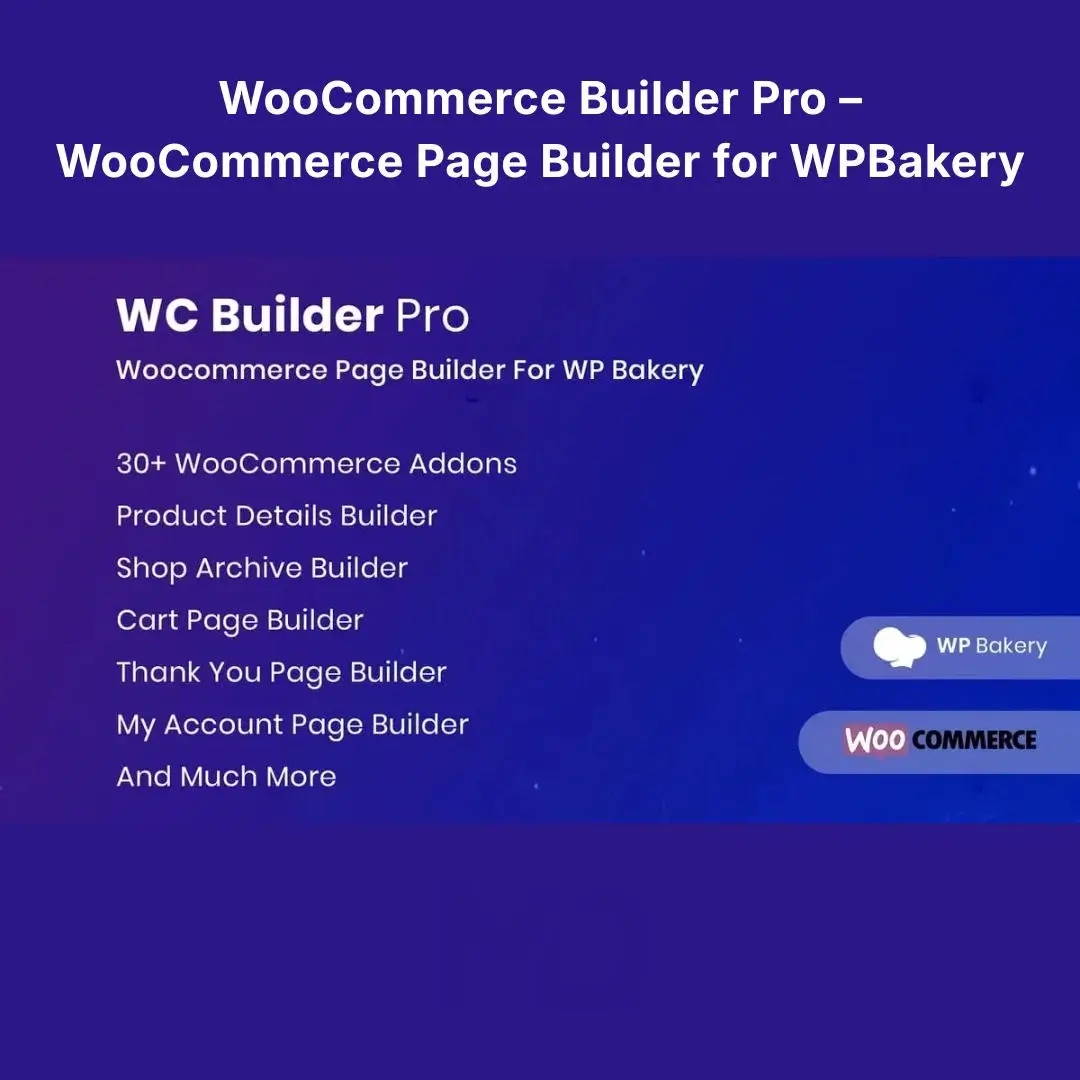

WooCommerce Builder Pro – WooCommerce Page Builder for WPBakery
Create, customize, and control your WooCommerce store layouts directly inside WPBakery.
A standard WooCommerce installation gives you the essential functionality needed to sell products, but your store’s default product, shop, cart, checkout, and account layouts may not always match your brand or conversion strategy.
WooCommerce Builder Pro – WooCommerce Page Builder for WPBakery is designed for store owners, designers, freelancers, and agencies who want greater control over WooCommerce page layouts while working with the familiar WPBakery Page Builder environment.
Instead of being restricted to the default WooCommerce templates, you can build and customize important store sections using dedicated WooCommerce elements and layout controls.
The original product listing describes a collection of WooCommerce-focused WPBakery elements for areas including product pages, shop/archive pages, cart, checkout, My Account, and Thank You pages.
Why Use a WooCommerce Page Builder?
Your WooCommerce store has several pages that directly affect the customer journey:
Product → Cart → Checkout → Order Confirmation
If these pages look inconsistent, contain unnecessary information, or don’t match your website design, customers may have a less streamlined shopping experience.
With a dedicated WooCommerce page builder for WPBakery, you can create layouts that better fit your:
- Brand identity
- Product catalog
- Store structure
- Marketing strategy
- Mobile design
- Customer journey
- Promotional campaigns
The goal is simple: take greater control over your WooCommerce store’s visual presentation without having to build every layout from scratch with custom code.
Key Features
1. Build Custom WooCommerce Pages with WPBakery
Use WooCommerce-specific elements within the WPBakery editing environment to create custom store layouts.
Instead of relying entirely on the standard WooCommerce presentation, you can arrange compatible elements according to your preferred design.
Create layouts for:
- Product pages
- Shop pages
- Product archives
- Cart pages
- Checkout pages
- My Account pages
- Thank You pages
- Other WooCommerce content areas
This makes the plugin particularly useful for developers and designers who already use WPBakery.
2. Customize WooCommerce Product Pages
Your product page is one of the most important parts of your online store.
Create a more structured product presentation by arranging WooCommerce elements around your product information.
Depending on the available elements and your configuration, you can work with areas such as:
- Product images
- Product title
- Price
- Product description
- Add-to-cart functionality
- Product metadata
- Product categories
- Product attributes
- Reviews
- Related products
- Additional product information
This gives you more flexibility when designing product pages for different types of stores.
Practical example
For a technology store, you could structure a product page as:
Product Image → Title & Price → Short Description → Add to Cart → Product Details → Reviews → Related Products
For a fashion store, you might prioritize:
Product Gallery → Product Name → Price → Variations → Add to Cart → Description → Related Products
3. Create Custom Shop & Archive Layouts
WooCommerce shop pages don’t have to look identical to every other WooCommerce store.
Use the available builder elements to create custom product listing layouts and organize your catalog according to your design requirements.
You can create sections for:
- Featured products
- Latest products
- Product categories
- Sale products
- Product archives
- Product grids
- Product information
This can be especially useful for stores with large product catalogs.
4. Improve Product Discovery
A well-structured store should make it easy for customers to find products.
Use custom layouts to create clearer product presentation and content hierarchy.
For example:
Featured Products
↓
Category Navigation
↓
Product Grid
↓
Promotional Section
↓
Additional Products
This structure can help organize your catalog and make your store easier to browse.
5. Customize Cart Pages
The cart is an important step between product discovery and checkout.
With WooCommerce-focused builder elements, you can create a cart layout that better matches your overall website design.
You can organize the cart experience around elements such as:
- Cart contents
- Product information
- Quantities
- Prices
- Subtotals
- Cart totals
- Coupon functionality
- Checkout navigation
A consistent cart design can help maintain the visual flow of your website.
6. Build Custom Checkout Layouts
The checkout page is where customers complete their purchases.
Use the available WooCommerce elements to structure your checkout page according to your website’s layout.
Depending on the supported elements, you can work with:
- Billing information
- Shipping information
- Order details
- Payment information
- Order totals
- Additional checkout sections
Problem solved
If your checkout page looks completely different from the rest of your website, it can feel disconnected.
A custom layout allows you to create a more consistent visual experience from:
Homepage → Product → Cart → Checkout
7. Customize the My Account Page
Give customers a more integrated account experience.
You can create layouts around WooCommerce account functionality and organize account-related content in a way that fits your website design.
Useful for:
- Customer dashboards
- Order history
- Account information
- Downloads
- Addresses
- Account navigation
This can be particularly useful for stores selling digital products, subscriptions, memberships, or downloadable products.
8. Customize the Thank You / Order Confirmation Page
The customer journey doesn’t necessarily end when payment is completed.
A customized Thank You page can provide additional information after an order.
Depending on the available WooCommerce elements, you can structure areas such as:
- Order information
- Customer details
- Product information
- Payment details
- Additional content
- Next-step instructions
For digital stores, this can be particularly useful for communicating download or account instructions.
9. WooCommerce Product Elements
The plugin provides WooCommerce-oriented elements intended to work within WPBakery.
These can help you construct product-focused sections without manually coding every component.
Use them to create layouts around:
- Product information
- Product pricing
- Product images
- Product descriptions
- Product attributes
- Product categories
- Related products
- Product reviews
- Shopping functionality
The original listing advertises 34+ WooCommerce-oriented elements/addons, covering multiple areas of the store experience.
10. WPBakery Integration
If your website already uses WPBakery Page Builder, this plugin fits naturally into that workflow.
Instead of learning an entirely different visual editor, you can work with WooCommerce-specific components through the WPBakery interface.
This is particularly valuable for:
- WPBakery-based websites
- Existing WooCommerce stores
- Freelancers
- WordPress agencies
- WooCommerce developers
- Website designers
11. Build Different Layouts for Different Stores
A single WooCommerce layout doesn’t work for every business.
For example:
Clothing Store
Focus on:
- Product images
- Variations
- Size information
- Price
- Add to cart
- Related products
Electronics Store
Prioritize:
- Product specifications
- Product attributes
- Pricing
- Availability
- Reviews
- Related products
Digital Product Store
Focus on:
- Product description
- Features
- Pricing
- Purchase button
- Download/account instructions
- Related products
The flexibility of a page-builder workflow allows you to adapt the layout to your business model.
12. Responsive Store Layouts
Your WooCommerce pages need to work on more than desktop computers.
After designing your store, check the layout on:
- Desktop
- Laptop
- Tablet
- Mobile phone
Pay particular attention to:
- Product image sizing
- Button placement
- Product grids
- Text spacing
- Checkout fields
- Cart layout
- Navigation
- Columns
A layout that looks excellent on desktop can still require adjustments for smaller screens.
13. Create Branded Store Experiences
One of the biggest advantages of custom WooCommerce layouts is the ability to make your store feel like your brand, rather than a default WooCommerce installation.
Use your existing:
- Typography
- Spacing
- Colors
- Buttons
- Content sections
- Product presentation
- Navigation structure
to create a more consistent shopping environment.
14. Useful for Agencies & Freelancers
If you build WooCommerce websites for clients, a flexible page-building solution can make it easier to create different store layouts without rebuilding the entire frontend from scratch.
Potential use cases include:
- Client stores
- Online retailers
- Product catalogs
- Digital shops
- Wholesale websites
- Fashion stores
- Electronics stores
- Service-based WooCommerce websites
You can create a reusable design approach and then customize it for each project.
Who Is This Product For?
WooCommerce Builder Pro is particularly suitable for:
- WooCommerce store owners
- WPBakery users
- WordPress designers
- WooCommerce developers
- Freelancers
- Web agencies
- E-commerce businesses
- Product catalog websites
- Digital product stores
- Online retailers
If your main problem is:
“WooCommerce works, but I don’t have enough control over how my store pages look.”
this type of builder can give you additional layout flexibility within the WPBakery workflow.
How to Install
Before installing any new WordPress plugin, it is recommended to create a complete backup of your website.
Step 1 — Make Sure WPBakery Is Installed
Your website should have WPBakery Page Builder installed and activated.
Go to:
WordPress Dashboard → Plugins → Installed Plugins
Confirm that WPBakery is active.
Step 2 — Install the Plugin
Go to:
Plugins → Add New Plugin → Upload Plugin
Select the provided plugin ZIP file.
Click:
Install Now
Step 3 — Activate
After installation is complete, click:
Activate Plugin
Step 4 — Confirm WooCommerce
Make sure WooCommerce is installed and active.
The plugin is designed for WooCommerce store-building functionality, so WooCommerce should be properly configured before you begin creating store layouts.
How to Use
Step 1 — Create a New Page
Go to:
Pages → Add New
Give your page an appropriate name.
For example:
Custom Shop
or
Custom Product Page
Step 2 — Open WPBakery
Click:
Backend Editor or Frontend Editor
depending on your preferred WPBakery workflow.
Step 3 — Add WooCommerce Elements
Click:
Add Element
Search for the WooCommerce Builder elements.
Select the element you want to add.
Step 4 — Configure the Element
Depending on the selected component, configure options such as:
- Product selection
- Categories
- Number of products
- Layout
- Columns
- Image size
- Typography
- Spacing
- Sorting
- Filtering
- Product information
- Visibility
Step 5 — Design Your Page
Arrange the elements into your desired structure.
For example:
Product Image
↓
Product Title
↓
Price
↓
Short Description
↓
Add to Cart
↓
Product Details
↓
Reviews
↓
Related Products
Step 6 — Check Mobile View
Before publishing, review the page at different screen sizes.
Make adjustments to:
- Columns
- Padding
- Margins
- Font sizes
- Images
- Buttons
- Product grids
Step 7 — Publish & Test
Publish the page and test the complete customer journey.
Perform a test using:
Product → Add to Cart → Cart → Checkout → Order Confirmation
Make sure the important WooCommerce functionality continues to work correctly.
Recommended Setup Checklist
Before launching your customized store, check:
- WooCommerce is active
- WPBakery is active
- Plugin is activated
- Product pages display correctly
- Shop/archive pages work
- Add-to-cart functionality works
- Cart updates correctly
- Checkout works
- Payment gateway works
- Customer account pages work
- Thank You page displays correctly
- Mobile layout has been tested
- Cache has been cleared
- Test order completed successfully
Troubleshooting
WooCommerce Elements Are Not Showing
Check that:
- WooCommerce is active.
- WPBakery is installed and active.
- The WooCommerce Builder plugin is activated.
- Your WordPress and plugin versions are compatible.
- The selected page template supports the required content.
- Caching has been cleared.
Product Information Is Missing
Check the product itself and make sure it contains the required information, such as:
- Product title
- Price
- Featured image
- Description
- Product status
- Product category
Layout Looks Incorrect
Try:
- Clearing your caching plugin.
- Regenerating CSS/cache where applicable.
- Checking WPBakery settings.
- Testing the page without conflicting plugins.
- Checking your theme’s WooCommerce templates.
- Testing the layout on a staging website.
Checkout Doesn’t Work
Do not assume a layout issue is responsible.
First test:
- WooCommerce settings
- Payment gateway
- Shipping configuration
- Required checkout fields
- SSL/HTTPS
- Other checkout-related plugins
Then test the customized layout separately.
Important Compatibility Consideration
This product is designed around WooCommerce and WPBakery, so those core components should be installed and properly configured.
Because WordPress stores can contain many combinations of themes, WooCommerce extensions, payment gateways, caching plugins, and custom code, compatibility can vary between websites.
For production stores, always test major changes on a staging environment or backup your website before modifying important checkout and account pages.
Build a Store That Looks Designed — Not Default
Your WooCommerce store is more than a collection of products.
Your product page, shop, cart, checkout, account area, and order confirmation pages all contribute to the overall customer experience.
WooCommerce Builder Pro – WooCommerce Page Builder for WPBakery gives WPBakery users additional tools for designing these WooCommerce areas and creating layouts that better match their brand and business requirements.
Whether you’re building a new online store or improving an existing WooCommerce website, the plugin can help you move beyond standard layouts and create a more customized shopping experience.
Copyright & Trademark Disclaimer
WooCommerce®, WordPress®, WPBakery®, and other referenced names, logos, and trademarks are the property of their respective owners. These names are used solely for identification, compatibility, and descriptive purposes.
This product is not affiliated with, endorsed by, sponsored by, or officially connected with the original developer, trademark owner, WooCommerce, WordPress, or WPBakery unless explicitly stated otherwise.
MD Digitals does not claim ownership of the original product’s trademarks, branding, or proprietary intellectual property. Where applicable, the distributed software is provided under the applicable GPL licensing terms.







Reviews
There are no reviews yet